Tuesday, July 2, 2013

OSX Key: Keyboard Shortcut To Sleep, Log Out, & Shut Down

You might need to press and hold some shortcuts slightly longer than others. This helps you to avoid using them unintentionally.


Press to turn on your Mac or wake it from sleep. Press and hold for 1.5 seconds to put your Mac to sleep.* Continue holding to force your Mac to turn off.

power

Put your Mac to sleep.

option–command–power* or 
option–command–eject 

Put your displays to sleep.

control–shift–power* or 
control–shift–eject 

Display a dialog asking whether you want to restart, sleep, or shut down.

control–power* or 
control–eject 

Force your Mac to restart, without prompting to save any open and unsaved documents.

control–command–power* 

Quit all apps, then restart your Mac. If any open documents have unsaved changes, you will be asked whether you want to save them.

control–command–eject 

Quit all apps, then shut down your Mac. If any open documents have unsaved changes, you will be asked whether you want to save them.

control–option–command–power* or 
control–option–command–eject 

Immediately lock your screen.

control-command-q

Log out of your macOS user account. You will be asked to confirm. To log out immediately without confirming, press Option-Shift-Command-Q.

shift-command-q
option–shift-command-q


* Does not apply to the Touch ID sensor.


OSX Cmd: Reschedule Time Machine Backups


If you want to change the interval of Time Machine backups simply enter the following command into your Terminal:

sudo defaults write/System/Library/LaunchDaemons/com.apple.backupd-auto StartInterval -int 1800

900  = 15 minutes
1800 = 30 minutes
3600 = 1 hour

Tuesday, April 9, 2013

OSX Cmd: Getting Rid of "Open With" duplicates


You right-click icon in the Finder, choose "Open With", and a submenu pops up with an absurd number of duplicate entries.

The duplicate entries in the "Open With" submenu are caused by some corruption of the Launch Services database. The lsregister command, which is buried many layers under the /System/Library folder, will rebuild the database if you invoke it with the right options.

Here’s a on how to fix it (and you can add to your .bashrc):

# Quick way to rebuild the Launch Services database and get rid
# of duplicates in the Open With submenu.
alias fixopenwith='/System/Library/Frameworks/CoreServices.framework/Frameworks/LaunchServices.framework/Support/lsregister -kill -r -domain local -domain system -domain user'

Now you can get rid of the duplicates from the Terminal by running:

fixopenwith

You may need to follow that up with a:

killall Finder


OSX Cmd: Customize Mission Control To Show Only Windows From Current Desktop Space

To get Mission Control to only show you open windows from the current Desktop Space, type or paste the following into your Terminal:

defaults write com.apple.dock wvous-show-windows-in-other-spaces -bool FALSE

Then, restart the Dock process, which also controls the Mission Control process:

killall Dock

Now you’ll only see windows from the currently active Desktop Space when you activate Mission Control.


NOTE: Return it back:

defaults write com.apple.dock wvous-show-windows-in-other-spaces -bool TRUE

killall Dock


Sunday, June 17, 2012

Want Colorful Command Line Shell For Your Mac OS X??


I always wanted to have colorful shell just like RedHat Enterprise Linux on my Mac OS X. It was not easy to configure it until a new command line shell from Ridiculous Fish (@ridiculous_fish) came in.

FISH - Friendly Interactive SHell  
The new fish is a POSIX command line shell with delightful, intuitive features like autosuggestions, 256 color syntax highlighting, web based configuration, and lots more. Best of all, these features just work, out of the box. No arcane syntax, no twiddling obscure knobs.


Steps On Installing & Configuring FISH:
  1. Download fish here.
  2. Just install fishfish.pkg
  3. Open Terminal
  4. Edit /etc/shells as root. Run: sudo vi /etc/shells
  5. Add the line (if missing): /usr/local/bin/fish
  6. To set FISH as as default shell for desire user, Login to desire user shell. Then run: chsh -s /usr/local/bin/fish


Some useful FISH command:

fish_config
Interactively set your color from the web. list FISH functions and variables. Also to see FISH command history.

fish_update_completions
Update man-page completions

Friday, October 29, 2010

OSX Key: Keyboard Shortcut Key For Delete Function

You can use one of the keyboard shortcut key below to perform 4 way of delete action:


delete
Delete one typed character at a time to the left.

fn + delete 
Delete one typed  character at a time to the right. Just like "Del" key on PC.

option + delete
Delete whole typed words at a time to the left

command + delete
Delete all typed charters to the left.


As far as I can tell this works all over Mac OS X and in most apps, including Safari, TextEdit, Terminal, Finder, iTunes, iChat, and more.

Saturday, July 10, 2010

OSX Network: Network Error (tcp_error)

If website not loaded and the following error is displayed usually it's caused by DNS cache.

-------------------------------------------------------------------

Network Error (tcp_error)
A communication error occurred: "Operation timed out"
The Web Server may be down, too busy, or experiencing other problems preventing it from responding to requests. You may wish to try again at a later time.

For assistance, contact your network support team.

-------------------------------------------------------------------

DNS request are usually cache, that’s good as it speeds up the lookups within the same host but sometimes we will want to clear the cache so it don’t hold the values that are no longer valid.

In Leopard (Mac OSX 10.5) or Snow Leopard (10.6) to clear DNS cache , just type this in your Terminal and hit enter:

dscacheutil -flushcache


Note:
A DNS server matches the URL of a website (eg www.domain.com) with its numeric IP address - it translates www.domain.com into the unique numeric IP address (XX.XX.XX.XXX). Whenever you request a web page, your browser asks the name server to find the numeric translation of the URL.

Without the DNS servers, it would be a complicated web because we would have to know all the IP addresses rather than the nice friendly name, like Google.com.

Saturday, January 24, 2009

Testing Post From iPhone


Fire Exit Sign

-- Post From My iPhone

Tuesday, January 13, 2009

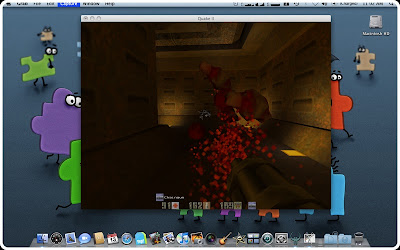
OSX: Quake II On Mac OS X

Old school game is back. One of my old time favorite, Quake II! To be able to run Quake II on Mac OS X you need:
  • Mac OS X v10.0 or higher. Mine Mac OS X 10.5.6
  • Cocoa version of Quake II v1.1 which includes the software and OpenGL renderer plug-ins. You can download it here at fRuitz oF doJo site. 
  • Definitely you need retail version of Quake II. It doesn't matter if you own Classic MacOS or the PC version, both will work. Mine is PC version.
  • Optional... you'll need a graphics board that provides accelerated OpenGL rendering if you want to use the OpenGL renderer instead of software renderer. Mine is Intel GMA X1300 and it's working flawlessly.


Oohhh... Sorry... I didn't mean it...

After you meet all above requirement, just follow below step to install: 
  1. Create directory /Application/Quake II.
  2. Copy baseq2 folder from Quake II CD to directory /Application/Quake II.
  3. Open Quake2v1.1.dmg that you download from fRuitz oF doJo site earlier. Then drag Quake II application file to directory /Application/Quake II. After that go "Into 'baseq2' folder" and drag file GameMac.q2plug to directory /Application/Quake II/baseq2.
  4. Click Quake II application file to play. 
Enjoy gaming.

Sunday, September 7, 2008

Band Used CCTVs To Record Music Video!

Could not afford a camera crew for music video? No problem for Manchester base band, "The Get Out Clause". Their were performed in front of a load of CCTV cameras around the city. Then they requested the footage from the camera operators under the "Freedom of Information Act Data Protection Act" and stitched the results together for their music video. Darn briliant.

Wednesday, July 16, 2008

Luke Jobs VS Darth Gates: The Games

Gates fans would like to have a revenge!!! Now it's the time.... Enjoy ;)

Luke Jobs VS Darth Gates

Hahahah... Watch it.... It's fun... Apple future product, iHome without Windows!


Sunday, July 13, 2008

iPod Touch: Hohoho... 2.0 Software Update

Hohohoho.... I just upgraded my iPod Touch to 2.0 Software update. You can buy it at App Store. It Just USD $9.95 said Apple. 

DARN!!! Can you just give it free... As you gave to iPhone users. Do us, iPod Touch users are second class citizen??? I'm feel sorry for who already paid for upgrade in January because you need pay it again for this upgrade.  Me... I'm lucky my uncle Jack paid it for me.... Hehehehe.... 

Now I'm busy downloading apps for iPod Touch. I will let you know my finding later on.

Below what you'll get once you upgraded to 2.0:

The App Store - Shop for applications on the App Store, download them directly to your iPod touch, and install them right away. Or shop the App Store on your computer for applications you can sync to your iPod touch.

Push Email with Microsoft Exchange ActiveSync - Email — also contacts and calendar — can now be pushed instantly to your iPod touch. Updated Language and Keyboard Support
Language support for English, French, German, Japanese, Dutch, Italian, Spanish, Portuguese, Danish, Finnish, Norwegian, Swedish, Korean, Simplified Chinese, Traditional Chinese, Russian, and Polish.

International keyboard and dictionary support for English (U.S.), English (UK), French (France), French (Canada), German, Japanese, Dutch, Italian, Spanish, Portuguese (Portugal), Portuguese (Brazil), Danish, Finnish, Norwegian,Swedish, Korean (no dictionary), Simplified Chinese, Traditional Chinese, Russian, and Polish.


Contacts Search - Find people faster by tapping a name, address, or other data into a new search field.

Multiple Calendars - Have a calendar for work, a calendar for home, and more. And manage them all with a touch.

Scientific Calculator - Rotate to landscape view for solving complex science, math, and programming problems.

Improved Mail Attachment Viewing - View more types of attachments, including iWork and PowerPoint files. And save photos emailed to you in your library.

New Mail Management Features - Delete and move groups of email messages, reply from a different account, and send with BCC.

Also get the new features added in the January ’08 update - Google Maps, Mail, Weather, Web Clips, a customizable Home screen and more.


Hohoho... It take about 15 minutes to finished this. So be patient.


Taraa.... Finaly 2.0 Software update.


Saturday, July 12, 2008

iTune Store: Malaysia iTune Store!!!

Hah! At last, Malaysia iTune Store. Spotted this last night. But they only selling Apps for iPhone and iPod Touch. Still no music or original iPod games. Anyway iPhone and iPod Touch geek.... faster register. Better hurry... they got some freebies.


Finaly... Malaysia iTune Store.


No music. No iPod Classic or nano games. It is just iPhone & iPod Touch application and games.


Sunday, May 18, 2008

Movie: The Real Superhero... Hancock!!!

"There are heroes... There are superheroes... and then there's Hancock (Will Smith). With great power comes great responsibility-everyone knows that-everyone, that is, but Hancock. Edgy, conflicted, sarcastic, and misunderstood, Hancock's well-intentioned heroic might get the job done and save countless lives, but always seem to leave jaw-dropping damage in their wake. The public has finally had enough- as grateful as they are to have their local hero, the good citizens of Los Angeles are wondering what they ever did to deserve this guy. Hancock isn;t the kind of man who care what other people think - until the day that he save the life of PR executive Ray Embrey (Jason Bateman, and the sardonic superhero begins to reliaze that he may have a vulnerable side after all. Facing that will be Hancock's greatest challenge yet - and task that may prove impossible as Ray's wife, Mary (Charlize Theron), insist that he's a lost cause."

Will Smith's latest superhero-themed flick Hancock. The film will be directed Peter Berg (The Kingdom). Hancock is set for a July 2, 2008, release. Watch trailers below its look fun and will be next Will Smith box-office.

Official Trailer


Extended Trailer

Thursday, May 15, 2008

OSX: How to create icon?

Have you ever wanted to have your faces as a Home icon? I’m not that freak... ok. But I love to have own icons for certain folders, so icon image will describe the folder contents. A picture is worth a thousand words... huh! If you would like too, below tutorial is for you.

[1] ICON DESIGN
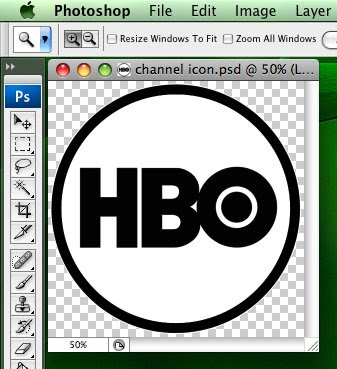
Get the image you like to convert as icon (below is mine). For Leopard the best is to get image at least 512px by 512px or bigger. Make and desire changes (transparent, white background, etc) using any image editor like “Photoshop”. Then resize the image to 512px by 512px and save it as a PSD or PNG.


[2] CONVERT IMAGE TO ICON
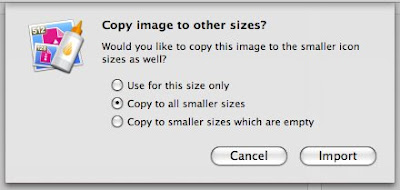
Open application called “Icon Composer” (under /Developer/Application/Utilities). Icon Composer is part of Apple’s Developer Tools. You can find these tools on your Mac OS X install disk. Drag the PSD or PNG image file to the “Icon Composer”. Below box will pop up . Just select “Copy to all smaller sizes”. Then click Import button.


So here the look like after you drag the image onto application. Save the file.


“Icon Composer” save the file as .icns file, which is almost usable. We need to convert .icns file to a .rsrc file, so Mac OS X can recognize it as icon. This can be easily done with free “Icns2Rsrc” application. Open .icns file with “Icns2Rsrc”. It will ask you where to save the .rsrc. Save anywhere you like.


[3] CHANGE THE ICON
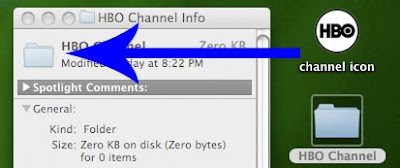
After done save, icon ready to be used. So you can change any folder/file/application icon by right click (or command+click) on folder/file/application icon and select “Get Info”. Then just drop created icon onto most top icon on the info windows (see picture below).


[4] SHOW IT TO THE WHOLE WORLD
DONE!... Screen capture and upload to the internet like me :D

Tuesday, May 13, 2008

OSX Safari: Safari 3 Always Show Tab Bar (Leopard)

Like I’m stated, I just upgrade my Macbook hard disk. I’m installed and updated everything from beginning. While reconfiguring my environment, I realized option "Always show the tab bar" from Safari has gone. In Safari 3's preferences, the option removed, but the inherent functionality is still available. (If you enabled it in Safari 2, it will be enabled by default in Safari 3)

I like the tab bar always there because, just need a double click on the bar and new tab will open. So I don’t need to go through long way for new tab open by clicking “File“ menu and “New Tab“.
  1. Ensure you close the Safari.
  2. Open Property List Editor (/Developer/Applications/Utilities/Property List Editor) Don’t border to search for it if you don’t install developer tools.
  3. Open the Safari plist file (~/Library/Preferences/com.apple.Safari.plist).
  4. Click the triangle to open the Root list, then click once on Root to highlight it.
  5. Click the "New Sibling" button.
  6. Change the name (New item) to "AlwaysShowTabBar", set the Class to Boolean, and set Value to "Yes".
  7. Save changes and quit Property List Editor.
  8. Then open the Safari. TARAAA!

Life Always Not Enough! Hohoho!

Let get Big Hair Brother jealous. See below photos... Hohoho!!! Before this I’m added 4GB RAM to get me to listen to musics (iTune) while editing photos (Darn! Aperture suck all the RAM). Just now, I’m bump the hard disk to 3200GB (297.77 GB in real, 1GB=1 billion bytes.) because existing 120GB hard disk run out of juice after I bring back 16GB RAW photos from Euro trip.

For who got big appetite, to make your life easier, below listed model that I’m used. Tested and verified by ME! But install on your own risk.
  • 2 x Kingston KVR667D2N5/2G RAM 2GB, 667mhz, DDR2, CL5
  • Western Digital Scorpio 320GB SATA, 1.5Gb/s, 5400RPM, 8MB Cache, 2.5“ HDD


Saturday, May 10, 2008

Tivoli Storage Manager: Virtual Node Restore

Recently one of my colleague asking how to restore backup from client A to client B using TSM Virtual Node. I think I just wrote working guide here so the others can read as well.

SENARIO:
Restore all sys*.dat files under directory /u02/oradata/ on ORAPROD (Client A) to directory /staging/proj04/oradata/ on ORADEVE (Client B). Backup need to be restore from 20/10/2007 until 26/10/2007

Client A = ORAPROD
Client A's Backup Server = TSM_SERVER_US <----- Get from dsm.opt file under ORAPROD

Client B = ORADEVE
Client B's Backup Server = TSM_SERVER_EU <----- Get from dsm.opt file under ORADEVE

Note:
dsm.sys - the file defines all TSM Backup Server client configuration option required.
dsm.opt - this file contain/determine which TSM Backup Server should client contact or backup to.
  1. Check backup on ORAPROD (client A) either exist or not (this case within certain period):

    dsmc q b -fromdate=10/20/07 -todate=10/26/07 -inactive "/u02/oradata/sys*.dat"

  2. Confirmed backup available, get which TSM backup server ORAPROD (client A) backup to and get all the TSM Backup Server client configuration option.

    # grep -i servername dsm.opt
    SERVERNAME TSM_SERVER_US

    # cat dsm.sys
    SERVERNAME TSM_SERVER_US
    COMMMETHOD TCPIP
    TCPPORT 1500
    TCPSERVERADDRESS tsm-us.palo-alto.com
    PASSWORDACCESS generate
    SCHEDMODE prompted
    COMPRESSION on
    SCHEDLOGRETENTION 14
    SCHEDLOGNAME /var/log/tsm/schedule.log
    ERRORLOGNAME /local/log/tsm/error.log
    TCPBUFFSIZE 512
    TXNBYTELIMIT 25600
    INCLEXC /opt/tivoli/tsm/client/ba/bin/inclexcl
    RESOURCEUTILIZATION 4
    TCPNODELAY Yes


  3. Then login to ORADEVE (client B) and add above ORAPROD's TSM Backup Server client configuration option to dsm.sys on ORADEVE (client B).

    # cat dsm.sys
    SERVERNAME TSM_SERVER_US
    COMMMETHOD TCPIP
    TCPPORT 1500
    TCPSERVERADDRESS tsm-us.palo-alto.com
    PASSWORDACCESS generate
    SCHEDMODE prompted
    COMPRESSION on
    SCHEDLOGRETENTION 14
    SCHEDLOGNAME /var/log/tsm/schedule.log
    ERRORLOGNAME /local/log/tsm/error.log
    TCPBUFFSIZE 512
    TXNBYTELIMIT 25600
    INCLEXC /opt/tivoli/tsm/client/ba/bin/inclexcl
    RESOURCEUTILIZATION 4
    TCPNODELAY Yes


  4. On ORADEVE (client B), log on Tivoli Client using ORAPROD (client A) credential by issuing below virtual node option:

    dsmc -servername=TSM_SERVER_US -virtualnodename=ORAPROD

  5. Restore desire ORAPROD (client A) backup files /u02/oradata/sys*.dat to specific directory /local/IOPLPR1/arch/ on ORADEVE (client B):

    restore -fromdate=10/28/2007 -todate=10/29/2007 -inactive "/u02/oradata/sys*.dat" /staging/proj04/oradata/

  6. TARAAA!!!

Thursday, April 10, 2008

Some test Tokina 11-16mm F2.8

Yesterday after doing some inspection on my new house, on the way back spotted a beautiful sunset scenery near by Kota Warisan. I also thinking to test a little bit a new toy Tokina AT-X 116 PRO DX 11-16mm F2.8. Without tripod below is the result:


p/s: Tomorrow I will start my Eastern Europe journey and will test this lens heavily. We will see the result end of this month ;-)