Tuesday, April 9, 2013
OSX Cmd: Getting Rid of "Open With" duplicates
You right-click icon in the Finder, choose "Open With", and a submenu pops up with an absurd number of duplicate entries.
The duplicate entries in the "Open With" submenu are caused by some corruption of the Launch Services database. The lsregister command, which is buried many layers under the /System/Library folder, will rebuild the database if you invoke it with the right options.
Here’s a on how to fix it (and you can add to your .bashrc):
# Quick way to rebuild the Launch Services database and get rid
# of duplicates in the Open With submenu.
alias fixopenwith='/System/Library/Frameworks/CoreServices.framework/Frameworks/LaunchServices.framework/Support/lsregister -kill -r -domain local -domain system -domain user'
Now you can get rid of the duplicates from the Terminal by running:
fixopenwith
You may need to follow that up with a:
killall Finder


OSX Cmd: Customize Mission Control To Show Only Windows From Current Desktop Space
To get Mission Control to only show you open windows from the current Desktop Space, type or paste the following into your Terminal:
defaults write com.apple.dock wvous-show-windows-in-other-spaces -bool FALSE
Then, restart the Dock process, which also controls the Mission Control process:
killall Dock
Now you’ll only see windows from the currently active Desktop Space when you activate Mission Control.
NOTE: Return it back:
defaults write com.apple.dock wvous-show-windows-in-other-spaces -bool TRUE
killall Dock
defaults write com.apple.dock wvous-show-windows-in-other-spaces -bool FALSE
Then, restart the Dock process, which also controls the Mission Control process:
killall Dock
Now you’ll only see windows from the currently active Desktop Space when you activate Mission Control.
NOTE: Return it back:
defaults write com.apple.dock wvous-show-windows-in-other-spaces -bool TRUE
killall Dock
Sunday, June 17, 2012
Want Colorful Command Line Shell For Your Mac OS X??
I always wanted to have colorful shell just like RedHat Enterprise Linux on my Mac OS X. It was not easy to configure it until a new command line shell from Ridiculous Fish (@ridiculous_fish) came in.
FISH - Friendly Interactive SHell
The new fish is a POSIX command line shell with delightful, intuitive features like autosuggestions, 256 color syntax highlighting, web based configuration, and lots more. Best of all, these features just work, out of the box. No arcane syntax, no twiddling obscure knobs.

- Download fish here.
- Just install fishfish.pkg
- Open Terminal
- Edit /etc/shells as root. Run: sudo vi /etc/shells
- Add the line (if missing): /usr/local/bin/fish
- To set FISH as as default shell for desire user, Login to desire user shell. Then run: chsh -s /usr/local/bin/fish
Some useful FISH command:
fish_config
Interactively set your color from the web. list FISH functions and variables. Also to see FISH command history.
fish_update_completions
Update man-page completions
Friday, October 29, 2010
OSX Key: Keyboard Shortcut Key For Delete Function
You can use one of the keyboard shortcut key below to perform 4 way of delete action:
delete
Delete one typed character at a time to the left.
fn + delete
Delete one typed character at a time to the right. Just like "Del" key on PC.
option + delete
Delete whole typed words at a time to the left
command + delete
Delete all typed charters to the left.
As far as I can tell this works all over Mac OS X and in most apps, including Safari, TextEdit, Terminal, Finder, iTunes, iChat, and more.
delete
Delete one typed character at a time to the left.
fn + delete
Delete one typed character at a time to the right. Just like "Del" key on PC.
option + delete
Delete whole typed words at a time to the left
command + delete
Delete all typed charters to the left.
As far as I can tell this works all over Mac OS X and in most apps, including Safari, TextEdit, Terminal, Finder, iTunes, iChat, and more.
Saturday, July 10, 2010
OSX Network: Network Error (tcp_error)
If website not loaded and the following error is displayed usually it's caused by DNS cache.
-------------------------------------------------------------------
-------------------------------------------------------------------
DNS request are usually cache, that’s good as it speeds up the lookups within the same host but sometimes we will want to clear the cache so it don’t hold the values that are no longer valid.
In Leopard (Mac OSX 10.5) or Snow Leopard (10.6) to clear DNS cache , just type this in your Terminal and hit enter:
dscacheutil -flushcache
Note:
A DNS server matches the URL of a website (eg www.domain.com) with its numeric IP address - it translates www.domain.com into the unique numeric IP address (XX.XX.XX.XXX). Whenever you request a web page, your browser asks the name server to find the numeric translation of the URL.
Without the DNS servers, it would be a complicated web because we would have to know all the IP addresses rather than the nice friendly name, like Google.com.
-------------------------------------------------------------------
| Network Error (tcp_error) |
| A communication error occurred: "Operation timed out" |
| The Web Server may be down, too busy, or experiencing other problems preventing it from responding to requests. You may wish to try again at a later time. |
For assistance, contact your network support team. |
-------------------------------------------------------------------
DNS request are usually cache, that’s good as it speeds up the lookups within the same host but sometimes we will want to clear the cache so it don’t hold the values that are no longer valid.
In Leopard (Mac OSX 10.5) or Snow Leopard (10.6) to clear DNS cache , just type this in your Terminal and hit enter:
dscacheutil -flushcache
Note:
A DNS server matches the URL of a website (eg www.domain.com) with its numeric IP address - it translates www.domain.com into the unique numeric IP address (XX.XX.XX.XXX). Whenever you request a web page, your browser asks the name server to find the numeric translation of the URL.
Without the DNS servers, it would be a complicated web because we would have to know all the IP addresses rather than the nice friendly name, like Google.com.
Saturday, January 24, 2009

Tuesday, January 13, 2009
OSX: Quake II On Mac OS X
Old school game is back. One of my old time favorite, Quake II! To be able to run Quake II on Mac OS X you need:
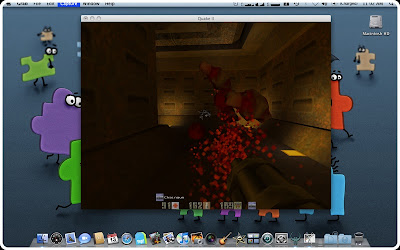
- Mac OS X v10.0 or higher. Mine Mac OS X 10.5.6
- Cocoa version of Quake II v1.1 which includes the software and OpenGL renderer plug-ins. You can download it here at fRuitz oF doJo site.
- Definitely you need retail version of Quake II. It doesn't matter if you own Classic MacOS or the PC version, both will work. Mine is PC version.
- Optional... you'll need a graphics board that provides accelerated OpenGL rendering if you want to use the OpenGL renderer instead of software renderer. Mine is Intel GMA X1300 and it's working flawlessly.
Oohhh... Sorry... I didn't mean it...
After you meet all above requirement, just follow below step to install:
- Create directory /Application/Quake II.
- Copy baseq2 folder from Quake II CD to directory /Application/Quake II.
- Open Quake2v1.1.dmg that you download from fRuitz oF doJo site earlier. Then drag Quake II application file to directory /Application/Quake II. After that go "Into 'baseq2' folder" and drag file GameMac.q2plug to directory /Application/Quake II/baseq2.
- Click Quake II application file to play.
Enjoy gaming.
Subscribe to:
Posts (Atom)